Only your words
No toolbars, no menus: the screen is the document. Reading mode hides the Markdown marks; writing mode shows them.

A Markdown editor for developers at heart who love to write, kept in your own GitHub, Google Drive, OneDrive or iCloud.
iPhone · iPad · Android · Coming soon
Coming soon to the App Store and Google Play
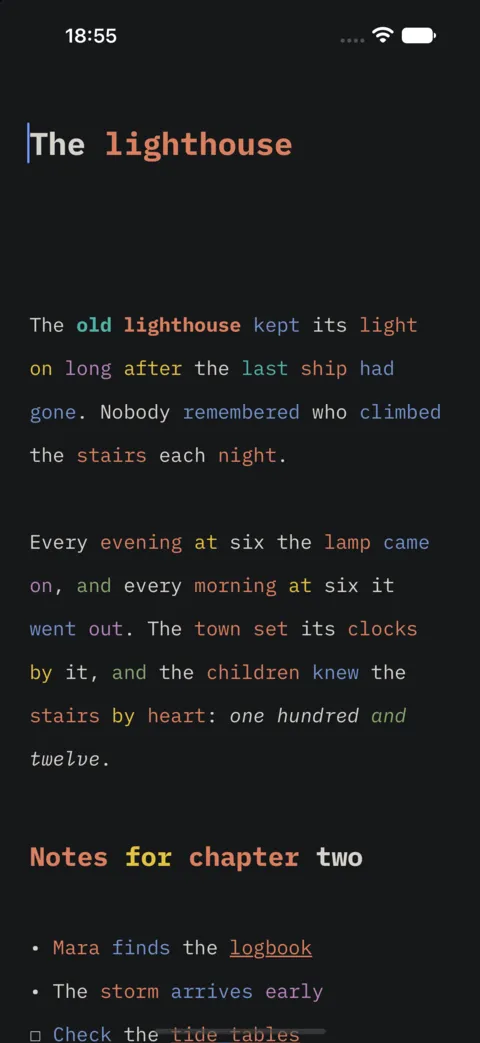
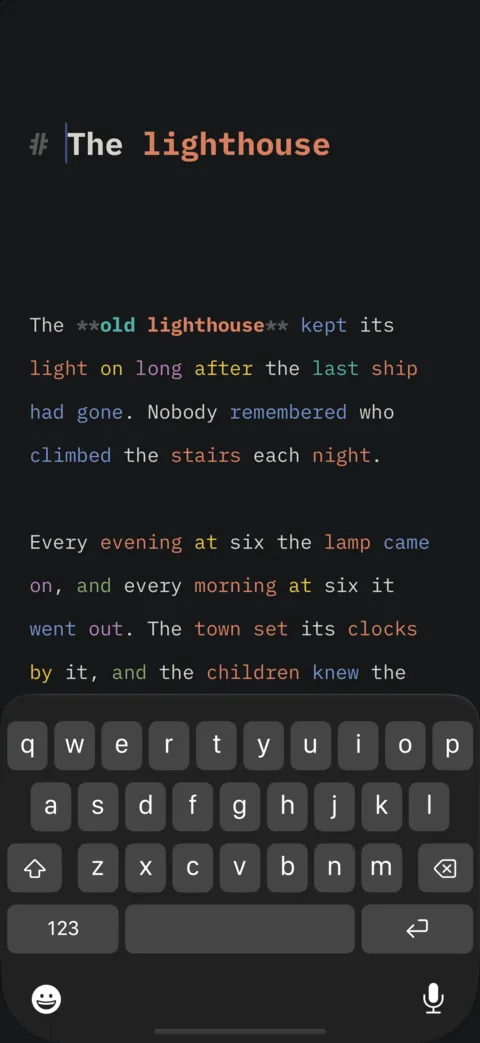
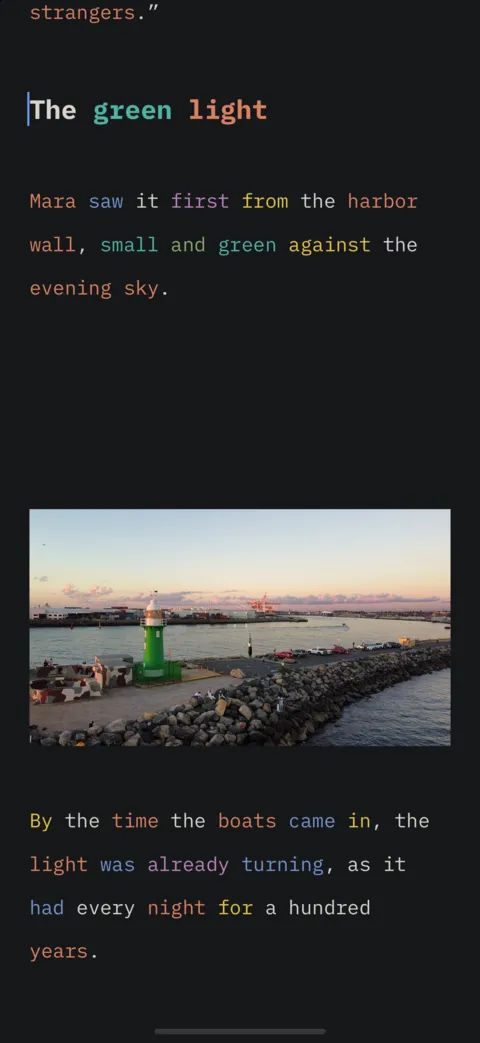
The same guide the app shows under Help. Every option, with a picture.
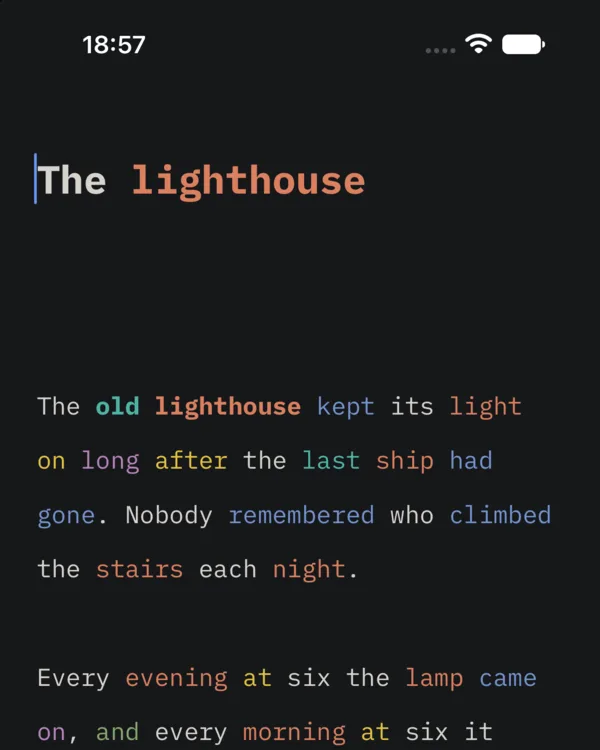
Rudoc shows nothing but your document. While you read, ? opens the help cards with every way in, and the keys you have now; this key never changes. No keyboard: tap the ? in the little status bubble.
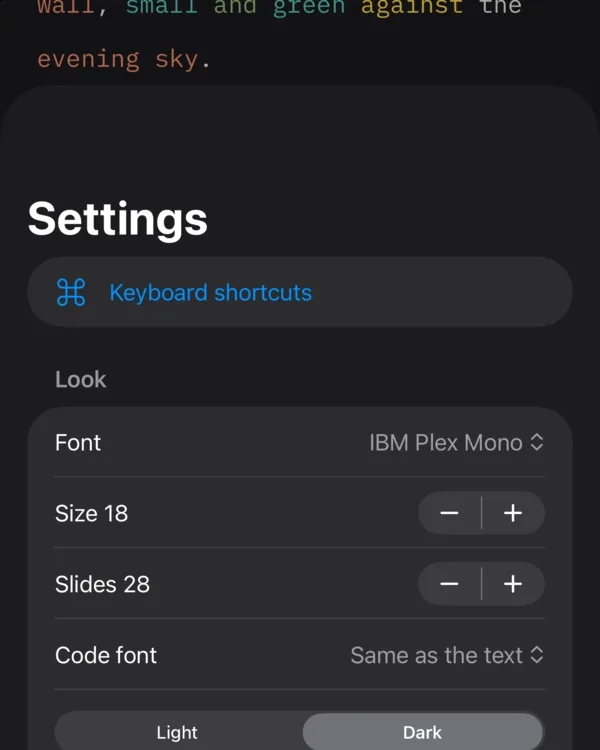
Space then , opens Settings: fonts, colours, places, backups and accounts. Type in the search box at the top to find any setting.
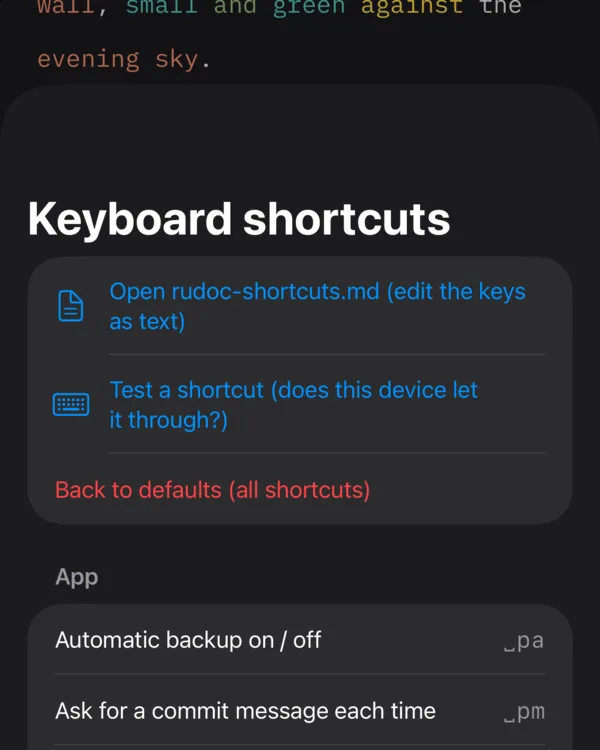
Space then K opens the shortcuts page: every action with its keys; tap one to change it. The same list is also a document, rudoc-shortcuts.md: type over a key and Rudoc applies it when you save.
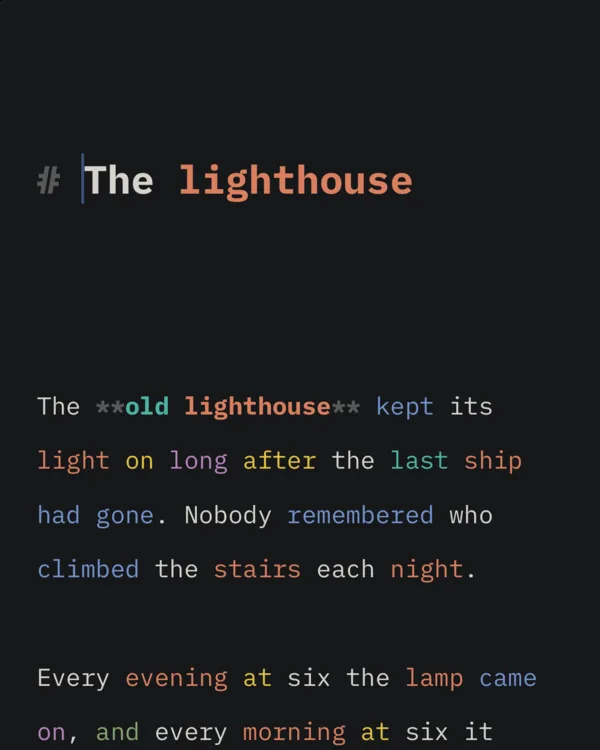
Rudoc opens in reading mode, without the Markdown marks; keys there are commands, as in Vim. Press i (or double-tap the text) to write, and the marks show. Escape brings you back to reading.
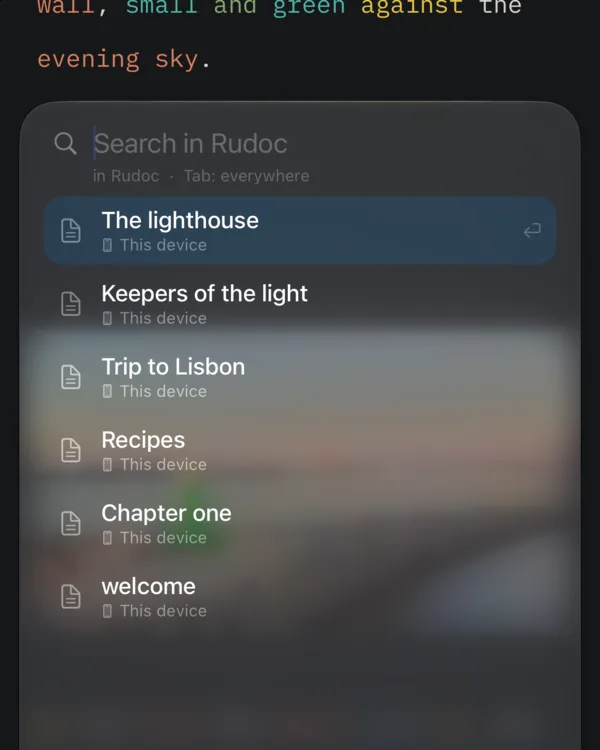
Space then f searches by name in the folder that is open. While the box is open, Tab changes where it searches: everywhere, then one place at a time. Each result says where it lives.
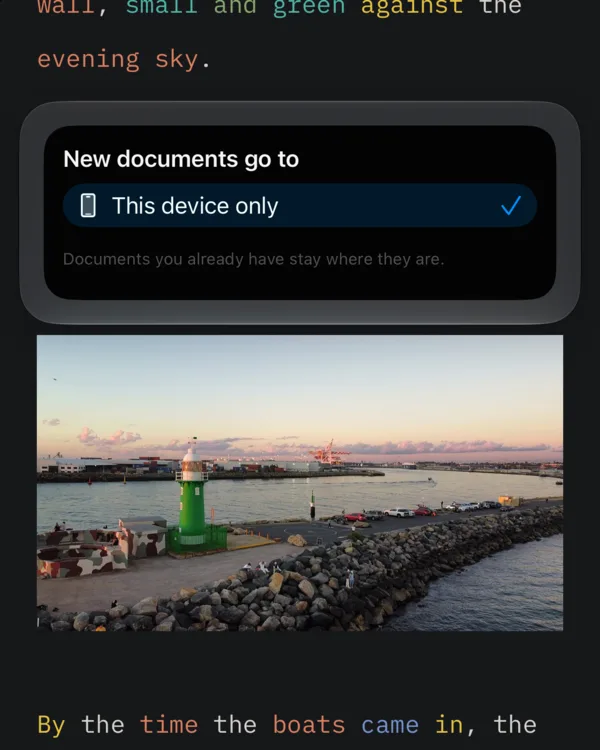
Connect GitHub, Google Drive, OneDrive or iCloud Drive in Settings. Then Space n p picks the place new documents are saved in; the documents you already have stay where they are.
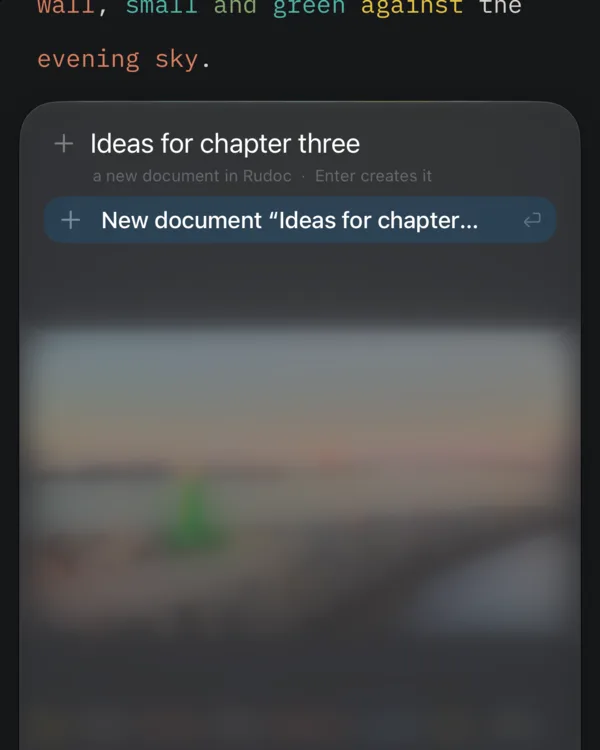
Space then n: type its name and Enter creates it. With a folder open it goes into that folder; otherwise to the place you chose.
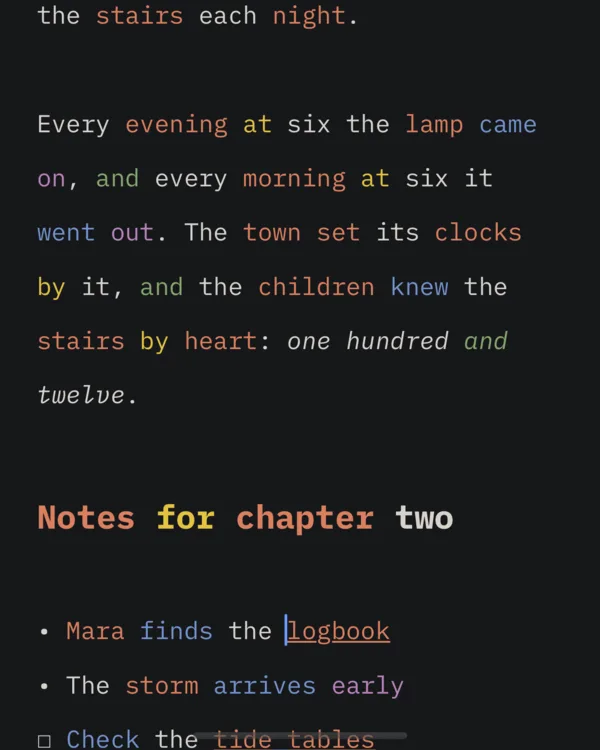
Tab goes to the next link and Shift+Tab to the one before, without touching the screen. Enter opens the link the cursor is on, or ticks a checkbox.
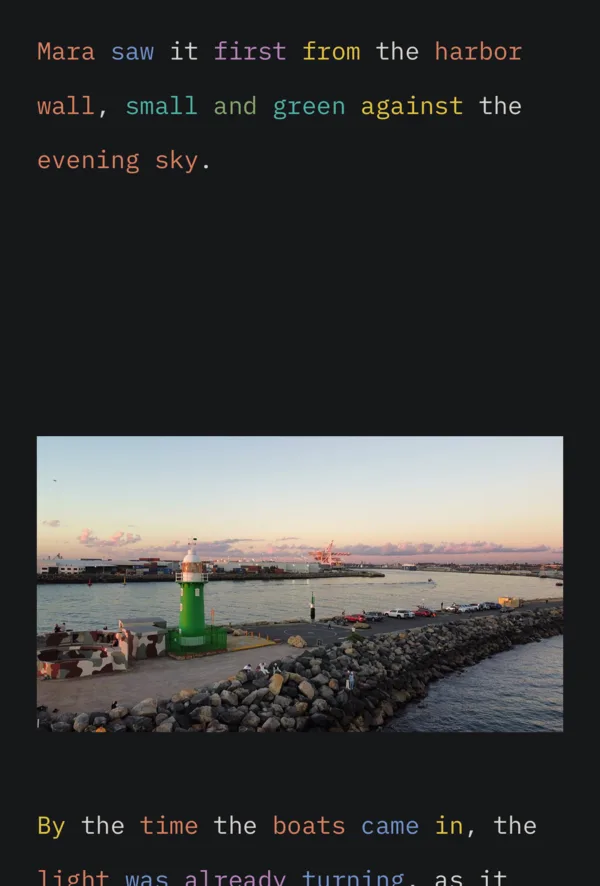
Space then I adds a picture where the cursor is: from Photos, from Files, or the one you copied. Type a few words about it for people who cannot see it. Rudoc makes it web size and keeps it next to the document, so GitHub, your blog and your other devices show it too.
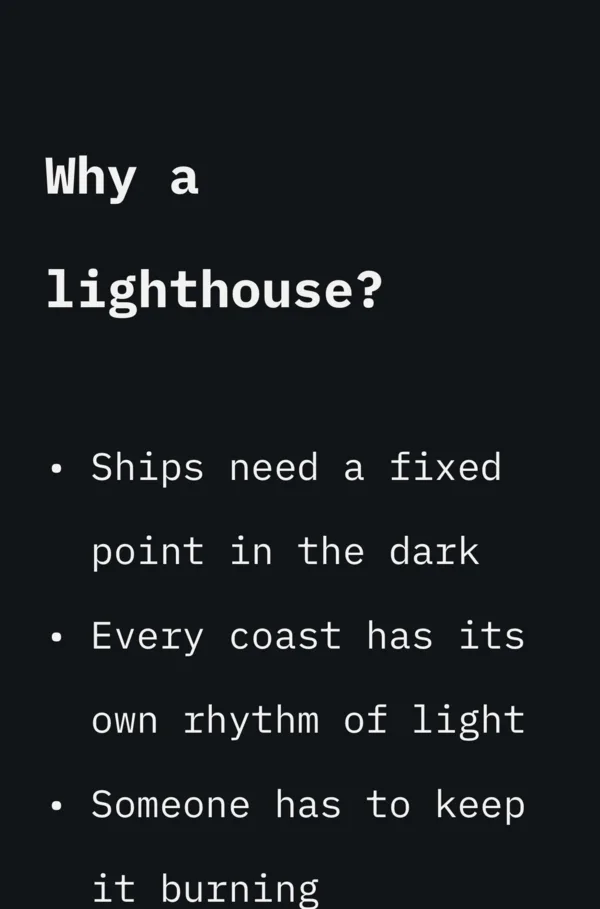
Any document is a slide deck: a line with only --- starts the next slide. Space then P presents it full screen. On iPhone and iPad, connect a TV or monitor with AirPlay 2 or HDMI: Rudoc fills the whole big screen (no black bars) and the phone becomes the remote.
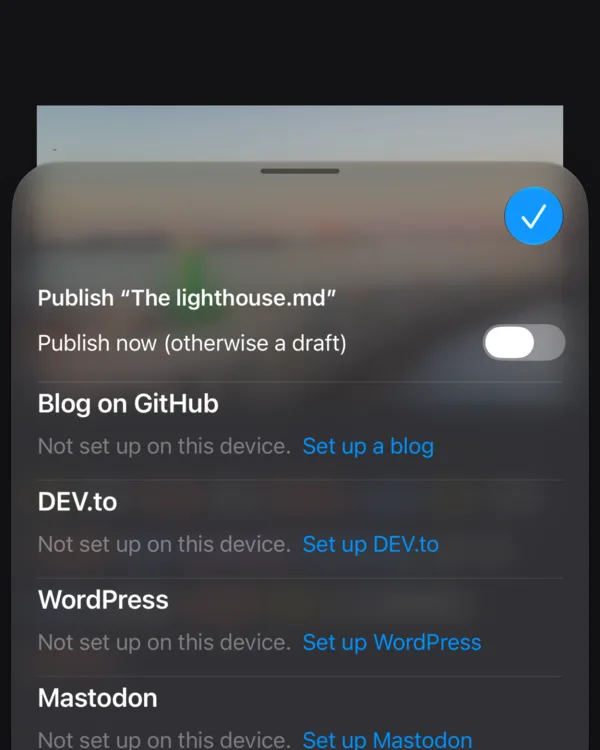
Space then u publishes the document: to your own blog on GitHub (Jekyll, Hugo, Astro…), DEV.to or WordPress, and then announces it on Mastodon. Space then x exports it: an EPUB book for Kindle or Play Books, a one-file presentation, plain text or LaTeX.
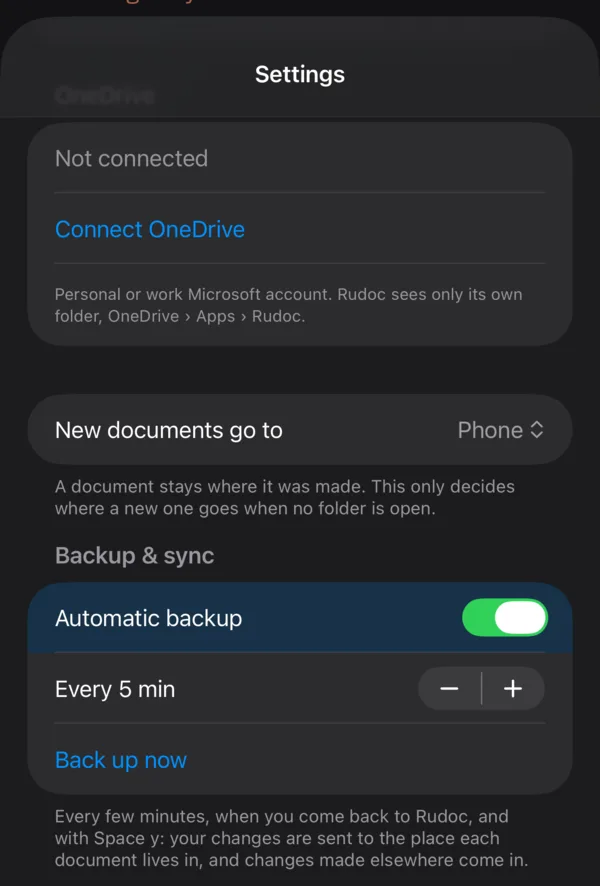
Rudoc backs up by itself every few minutes (set how often in Settings). Space then y backs up right away and brings in what you changed on another device.
No toolbars, no menus: the screen is the document. Reading mode hides the Markdown marks; writing mode shows them.
Every action has a key, and you can change any of them on the shortcuts page or in a plain file. Press ? at any time to see the keys you have now.
Keep each document in your own GitHub repository, Google Drive, OneDrive, iCloud Drive or only on the device. Rudoc backs them up on its own and brings in what you changed on another device.
Search one folder or every place you are connected to; each result says where it lives.
No account with us and no server of ours. Your documents travel only between your device and the places you connect (your own GitHub, Google Drive, OneDrive or iCloud Drive); we never receive them, your account details or your keys, which stay in your device's Keychain or Keystore. In Google Drive Rudoc can see only the files it created, and in OneDrive only its own folder (OneDrive › Apps › Rudoc). Rudoc's use and transfer of information received from Google APIs adheres to the Google API Services User Data Policy, including the Limited Use requirements. A problem report reaches us only if you send it yourself; it may include the names of your documents, never their text. Details are in section 12.6 of our Privacy Policy.
Read the Privacy PolicyWrite to support@jjir.org. We answer every message.
Support pageMade by JJIR